
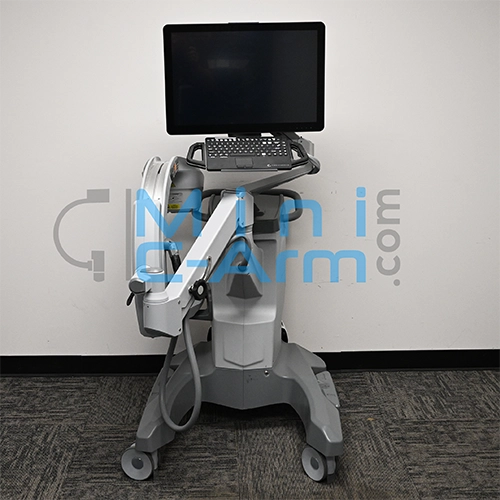
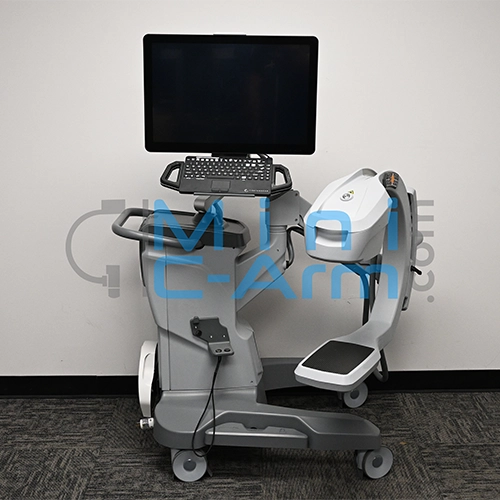
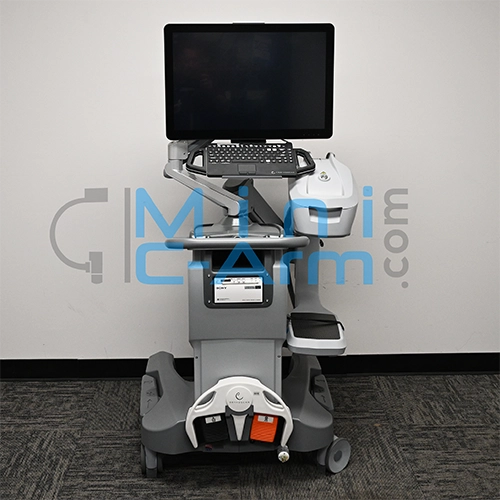
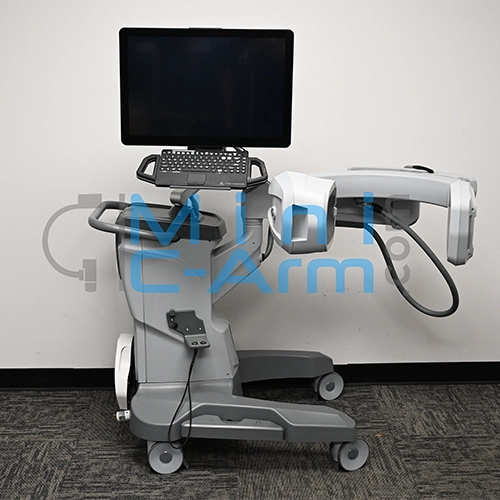
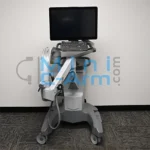
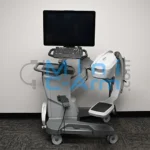
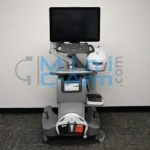
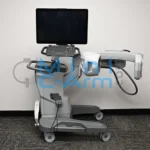
The Orthoscan TAU 1512 is the current-generation surgical extremity mini C-arm in the Orthoscan lineup. Its 15cm x 12cm CMOS flat panel delivers 2k x 1.5k resolution with a 42.5-micron focal spot for sharper hardware and fracture detail than previous-generation Orthoscan platforms. With 160 degrees of orbital rotation, a 24-inch OrthoTouch 2.0 touchscreen, a built-in pediatric dose filter, and a multifunction wireless foot switch, the TAU 1512 is designed around surgical team workflow from the ground up.
The President of Minicarm.com is a co-founder of Orthoscan and our team includes certified Orthoscan technicians with hands-on TAU 1512 platform experience across sales, service, and clinical support.
Available for sale, lease, or short-term and long-term rent nationwide.
1 (800) 643-2998
24-Inch OrthoTouch 2.0 Touchscreen
Hosted by: Christopher Bacon, Co-Founder of Orthoscan and President of Minicarm.com
Hi, I’m Christopher Bacon, co-founder of Orthoscan and president of Minicarm.com. Today we’re going to do an overview of the Orthoscan TAU 1512.
Powering On
The green power button is on the back of the machine next to the push handle. While the system boots up, we’ll walk through the C-arm articulation.
C-Arm Range
Here is the orbital rotation, the minimum height, the maximum height, and the wig-wag rotation. Boot-up takes about a minute.
Home Screen
When boot-up is complete, you arrive at the home screen with four options: schedule cases, recall, patient information, or press the foot pedal to go directly into the imaging screen.
Imaging and Foot Pedal Technique
Tap the foot pedal to enter the imaging screen and begin. When acquiring images, hold the foot pedal down for a second or two rather than tapping it. Holding produces a clean, bright image. Tapping produces a grainy result. Hold down, release, wait, then reapply for consistent image quality.
Bilateral Tube-Head Controls
The TAU 1512 has bilateral tube-head controls on both sides of the machine. From the tube-head controls you can:
Touchscreen Controls
From the imaging screen, use the touchscreen to zoom into the anatomy and navigate around the image. Double-tap to return to the full view. You can also rotate the image from the touchscreen.
On-Screen Controls
The imaging screen includes the following controls along the interface:
Case Review
Press the case review button to enter the review screen. From here you can save to the hard drive, unsave, print, or send directly to DICOM. Use the back arrow to return to the previous screen.
Patient Information
The patient information button lets you enter patient details and select anatomy type and patient size. The TAU 1512 supports three pediatric modes and adult mode from this screen.
Schedule Cases
From the home screen, press Schedule Cases to add a new scheduled patient. Enter all patient information and press Save, or select a previously scheduled patient from the list. From the scheduled case you can delete the case or begin imaging.
Recall Screen
Press the Recall button from the home screen to access previously completed cases. Select a case to start a new imaging session from it, edit patient information, delete the case, or review stored images. From the review screen you can print, send to DICOM, or save individual images. Press the return button to go back.
Shutting Down
When you are finished, press the green button on the back of the machine by the push handle. Press it momentarily to initiate shutdown. Make sure the machine is fully powered down before unplugging it from the wall.
This has been an overview of the Orthoscan TAU 1512. For service or sales, call (800) 643-2998 or email info@minicarm.com.
Minicarm.com has supported Orthoscan systems from the first-generation FD platform through the current TAU 1512. The President of Minicarm.com is a co-founder of Orthoscan, and our certified technicians have hands-on TAU 1512 platform experience across installations, service calls, and preventive maintenance nationwide. 85% of issues are diagnosed and resolved remotely. For on-site repair, a certified technician typically arrives within 24 to 48 hours.
Every Orthoscan TAU 1512 sold by Minicarm.com is inspected and rebuilt to OEM specification by Orthoscan-trained technicians. Refurbishment covers flat detector performance, OrthoTouch 2.0 software calibration, laser alignment verification, brake and wheel system inspection, surgical LED functionality, electrical safety testing, and full cosmetic restoration.
Request the Orthoscan TAU 1512 Service Manual
| Model | Detector | Best For |
|---|---|---|
| Orthoscan TAU 1512 | 15cm x 12cm CMOS flat panel, 2k x 1.5k | Current-generation platform, broadest orbital range |
| Orthoscan FD | 6x4-inch flat detector, 2k x 1.5k | Standard surgical extremity |
| Orthoscan FD OR | 6x4-inch CMOS flat panel, 2k x 1.5k | OR-integrated workflow |
| Orthoscan FD Pulse | 15x15cm CMOS flat panel, 1.5k x 1.5k | Lowest dose, longest surgical cases |
| Orthoscan HD | 6/4-inch image intensifier, 1k x 1k | Beach-chair, standing-knee |
| Orthoscan UC | 6/4-inch image intensifier, 1k x 1k | In-office extremity, compact |
| Orthoscan Mobile DI | 6x4-inch flat panel, 2k x 1.5k | Most portable (35 lbs, small footprint) |
Need a full datasheet? Request the Orthoscan TAU 1512 service manual from Minicarm.com.
Certified-refurbished Orthoscan TAU 1512 systems from Minicarm.com are rebuilt to OEM specification and priced between $45,000 and $65,000, depending on year of manufacture, hours of use, included accessories, and warranty tier. Each unit ships with a 12-month parts and labor warranty. Call (800) 643-2998 for current availability and exact pricing.
Orthoscan TAU 1512 mini C-arm rentals are available for both short-term and long-term needs, including coverage during primary system downtime, trial periods before purchase, and high-volume seasonal case support. Monthly rates depend on rental length and configuration.
Estimate monthly revenue and break-even timeline using our Clinical Reimbursement Calculator
Review our Mini C-Arm Buyer’s Guide
Learn more about financing options.
Please share your contact information and details about your needs, and one of our medical imaging experts will get in touch with you shortly. Not ready to buy yet or have questions?
Yes. The TAU 1512 is the current-generation Orthoscan surgical extremity mini C-arm and remains in active production. OEM parts, software updates, and manufacturer support are available. Minicarm.com sells certified-refurbished TAU 1512 units and provides independent service contracts for practices that prefer third-party coverage.
OrthoTouch 2.0 is the second-generation Orthoscan software interface, running on a 24-inch touchscreen on the TAU 1512. Compared to the original OrthoTouch on the FD Pulse, OrthoTouch 2.0 offers a larger display area, higher resolution, updated navigation, and improved workflow for image review, case management, and DICOM export. It runs on Windows 8.1 Embedded vs the Windows 7 Embedded found on FD-family platforms.
Yes. The TAU 1512 includes a built-in pediatric dose filter that optimizes radiation output for pediatric patient presentations without requiring a separate protocol or equipment change. Practices serving both adult and pediatric orthopedic patients can handle the full range of extremity cases on a single system. The filter is selectable at the time of the exam and does not affect imaging workflow for adult cases.
Pricing on certified-refurbished Orthoscan TAU 1512 systems are typically between $45,000 and $65,000. The price depends on year of manufacture, hours of use, included accessories, and warranty tier. Call (800) 643-2998 or request a quote for current availability and exact pricing.
No. The TAU 1512 accepts a wide input voltage range of 90 to 253 VAC at 47 to 63 Hz, which covers standard US power without a dedicated circuit or panel upgrade. This also means the system can operate on international power supplies without a separate transformer, making it compatible with facilities that have non-standard electrical configurations. A standard wall outlet is sufficient for most US installations.