



Looking at the InSight 2 instead? See refurbished Hologic InSight 2 pricing and specs.
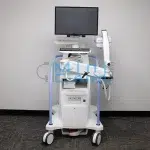
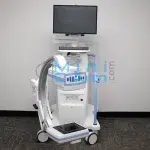
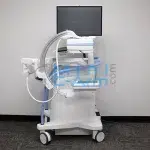
The Hologic Fluoroscan InSight FD is Hologic’s flagship flat-detector mini C-arm, built for extremity imaging in orthopedic, podiatric, and surgical settings. Featuring a CMOS flat detector with a 75-micron pixel array, 2k x 1.5k resolution, a touchscreen monitor, an exclusive rotating detector, and the lowest radiation exposure rate of any mini C-arm on the market, the InSight FD delivers diagnostic-quality imaging in a footprint built for exam rooms, surgery centers, and outpatient ORs.
Available for sale, lease, or rent nationwide.
1 (800) 643-2998
CMOS Flat Detector with 75-Micron Pixel Array
HD Touchscreen Display
Crisp touchscreen monitor for clear imaging and intuitive operation.
Hosted by: Christopher Bacon, Co-Founder of Orthoscan and President of Minicarm.com
Hey guys, I’m Christopher Bacon. I’m the founder of Orthoscan and the president of Minicarm.com.
Today we want to show you how to basically use the Hologic InSight FD.
To start it up, always press the green power button down here next to the DVD drive. The USB drive is down here too, a little hidden, but we know it’s there. While this boots up, I’ll show you a little bit of the articulation of the C-arm.
That’s as low as we go, it’s about knee level. And that’s as high as we go. You also get 120 degrees of orbital rotation. And this right here is the lock, locked in place so it doesn’t rotate when you don’t want it to.
Once we get to this screen, always hit the Add Admin button. Takes a couple of seconds to boot into the application. If it doesn’t, give us a call. Last name, first name, and patient ID, so just throw in here: Raw and Bacon.
It’s got a touchscreen which can help you navigate through the boxes. And notice that the Perform light just lit up. Just give that a tap and you’re ready to X-ray. Now we’re in the imaging screen.
Take our hand phantom, place it in the field.
As you can see, I press the foot pedal for approximately one second. Always do that. Don’t just tap it because you’re not going to get the best quality image that you’re looking for. Also, in between pressing the button, wait about a second, and I’ll show you why here.
When this populates, then you can go ahead and initiate another fluoro or another single shot. Make sure that the system runs properly and it works as expected.
So once we’re finished imaging, you want to press the Review button. You can select all and then save, or you can actually choose which ones you want by pressing the Control button and then hit Save.
You can also export. If you had a USB plugged in down below, you would see it located here and you would just touch it. And you can hit Save to the DVD drive. You can also save in TIFF and JPEGs for your EMR. And we’re just going to hit Cancel here.
And then you could also print. As long as you have at least one of these images highlighted, you can print.
Then, once you’re finished with that, you can hit End Session and you’re back out to your splash screen.
When you want to review cases on the machine, just press Review. You can actually choose a couple of different ones just by hitting the Shift button. You can select these two and you can review all the images at once.
On this machine, you can rotate the flat detector 180 degrees. And there are indents so you actually feel it when you get to center and on both ends. The nice thing about this is you can do this while you’re X-raying.
To shut the machine down, always shut down from the screen. Please do not use the on/off button because that doesn’t allow Windows to shut down properly, and in time it’ll start giving you issues.
Once the screen goes black, unplug it from the wall. Try not to keep this plugged in all the time because there are certain components that are totally powered all the time.
That’s an overview of the Hologic InSight FD. If you’re interested in sales or service, please give us a call at 800-643-2998 or just send us an email at info@minicarm.com. Thank you.
The Hologic InSight FD is the flat-detector mini C-arm of choice for clinicians who need diagnostic-quality extremity imaging with the lowest dose rate in the category. Common applications include:
Minicarm.com is the only independent source for OEM parts, certified refurbishment, and factory like service. No other service organization has the parts pipeline, trained technicians, or refurbishment experience for this equipment. 85% of issues are resolved through 24/7 phone and video support. When on-site service is needed, certified technicians respond within 24 to 48 hours in most U.S. metro areas.
Request the Hologic InSight FD Service Manual
| Spec | Hologic InSight FD | Hologic InSight 2 |
|---|---|---|
| Detector type | CMOS flat detector (75-micron pixel) | 6/4-inch image intensifier |
| Resolution | 2k x 1.5k | High-res digital |
| Monitor | HD touchscreen | Flat-screen LCD |
| Image storage | 8,000 images | Local digital storage |
| Exposure rate | Lowest of any mini C-arm | Ultra-low dose |
| C-arm range of motion | 120 degrees | Standard orbital |
| Best for | Flagship flat-detector imaging | Value-tier extremity imaging |
Need a full datasheet? Download the Hologic InSight FD product brochure or request the Hologic InSight FD service manual.
Certified-refurbished Hologic InSight FD pricing from Minicarm.com starts as low as $45,000 and runs up to $75,000 depending on year, hours, accessories, and warranty tier. Every refurbished system ships with a 12-month parts and labor warranty.
Mini C-Arm Rentals are available to accommodate testing/evaluation before committing to a purchase, or for surge coverage, clinical trials, and case-by-case projects. Monthly rental rates start in the mid four figures.
Estimate monthly revenue and break-even timeline using our Clinical Reimbursement Calculator
Review our Mini C-Arm Buyer’s Guide
Learn more about financing options.
Please share your contact information and details about your needs, and one of our medical imaging experts will get in touch with you shortly. Not ready to buy yet or have questions?
The President of Minicarm.com is a co-founder of Orthoscan. We are the only source for factory-level OEM parts, certified refurbishment, and authorized service for this platform in the United States after Hologic’s end-of-life announcement.
Yes. The InSight FD is DICOM 3.0 compliant and supports network export to PACS, as well as direct export via USB, CD/DVD, and printer. Images can also be saved as JPEG, TIFF, BMP, or AVI for EMR integration.
Certified-refurbished Hologic InSight FD pricing starts as low as $45,000 and typically runs up to $75,000 depending on year of manufacture, included accessories, and warranty tier. Call (800) 643-2998 for an exact quote.
The InSight FD features a proprietary Low Dose Rate fluoroscopy mode that delivers the lowest radiation exposure rate of any mini C-arm currently in service. This makes it particularly well suited for long surgical cases, high-volume practices, and settings with active radiation safety programs.
The InSight 2 uses a 6/4-inch image intensifier with a 0.045 mm focal spot. The InSight FD upgrades to a CMOS flat detector with a 75-micron pixel array and 2k x 1.5k resolution, a HD touchscreen, the lowest exposure rate of any mini C-arm, and 120 degrees of C-arm range of motion. The InSight FD is the flat-detector flagship.
Minicarm.com is not affiliated with or endorsed by Hologic. All product names, logos, and trademarks are the property of their respective owners and used for identification purposes only. Hologic Fluoroscan InSight FD Mini C-Arm pricing, specifications, and availability subject to change. Refurbished mini C-arms are inspected and certified by Minicarm.com under our own quality program, independent of the original manufacturer.